
Paint.NET 4.0.5034.2167 Alpha / Paint.NET 3.5.11.4977.23443

Paint.NET 4.0.5034.2167 Alpha / Paint.NET 3.5.11.4977.23443
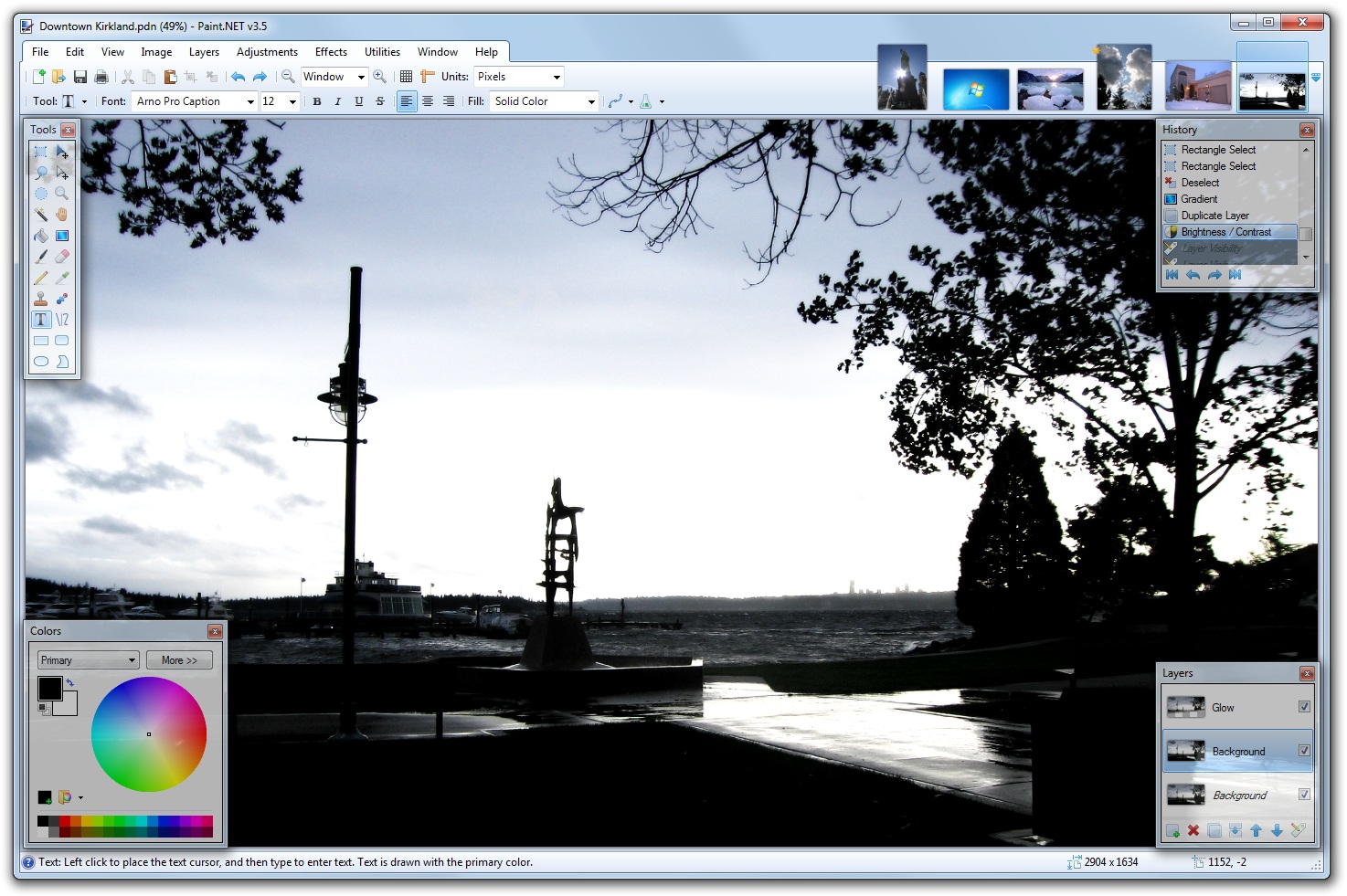
Paint.NET is free image editing and photo manipulation software designed to be used on computers that run Windows. It supports layers, unlimited undo, special effects, and a wide variety of useful and powerful tools. Paint.NET started development as an undergraduate college senior design project mentored by Microsoft, and is currently being maintained by some of the alumni that originally worked on it. Originally intended as a free replacement for the MS Paint software that comes with Windows, it has grown into a powerful yet simple tool for photo and image editing. Paint.NET can be used to enhance and clean up your photographs. Using the Clone Stamp tool, the power lines that criss-crossed in front of the Space Needle were carefully removed.
Other operations were performed that had the effect of smoothing out the image without blurring it, adding some “bloom” (glow), and increasing the contrast.
The programming language used to create Paint.NET is C#, with a small amount of C++ for installation and shell-integration related functionality.
Paint.NET Features:
Simple, intuitive user interface
Every feature and user interface element was designed to be immediately intuitive and quickly learnable without assistance. It is also designed to be immediately familiar to users of the original MS Paint software that comes with Windows.
Layers
Usually only found on expensive or complicated professional software, layers form the basis for a rich image composition experience. You may think of them as a stack of transparency slides that, when viewed together at the same time, form one image.
Powerful Tools
Paint.NET includes simple tools for drawing shapes, including an easy-to-use curve tool for drawing splines or Bezier curves. The Gradient tool, new for 3.0, has been cited as a huge improvement over similar tools provided by other software. The facilities for creating and working with selections is powerful, yet still simple enough to be picked up quickly. Other powerful tools include the Magic Wand for selecting regions of similar color, and the Clone Stamp for copying or erasing portions of an image. There is also a simple text editor, a tool for zooming, and a Recolor tool.
Unlimited History
Everybody makes mistakes, and everybody changes their mind. To accommodate this, every action you perform on an image is recorded in the History window and may be undone. Once you’ve undone an action, you can also redo it. The length of the history is only limited by available disk space.
Special Effects
Many special effects are included for perfecting your images. Everything from blurring, sharpening, red-eye removal, distortion, noise, and embossing are included. Also included is our unique 3D Rotate/Zoom effect that makes it very easy to add perspective and tilting.
Adjustments are also included which help you tweak an image’s brightness, contrast, hue, saturation, curves, and levels. You can also convert an image to black and white, or sepia-toned.
Open Source and Free
Paint.NET is provided free-of-charge, and the source code (all 133,000 lines of it) is also available for free under generous licensing terms. The bulk of Paint.NET is written in C#, with only a small amount of code related to setup and shell-integration written in C++.
Changes in Paint.NET 4.0:
System requirements:
– Windows 7 SP1 or newer is now required.
– Windows XP and Windows Vista are no longer supported (paint.net will not install).
– NET Framework 4.5 is now required, and will be installed if needed.
– A dual-core (or more!) CPU is highly recommended. (I no longer test on single core systems, btw.)
– A brand new, asynchronous, fully multithreaded rendering engine:
– Performance scales very well with respect to the number of CPU cores, whether you have 2, 4, 6, or even 16 of them.
– Performance scales much better with large, or even huge, images. Rendering will slow down and you will see tiles “trickling” in as they are completed, but the UI will still be responsive to your changes and clicks.
– The canvas now uses hardware acceleration via Direct2D, which also improves performance.
– Memory usage is lower.
– Selections have been improved in many ways:
– Antialiased selections. You may turn this on/off at any time from the toolbar.
– Selection outlines are now rendered with the “dancing ants” animation.
– Performance of selection rendering and manipulation (Move Selection tool) have been fantastically improved.
General UI:
– The functionality previously provided by the Utilities, Window, and Help menus has been simplified, consolidated, and moved to the top-right corner of the main window.
– A brand new Settings dialog makes it much easier to configure all the tool and toolbar defaults, among other things.
– The zoom slider and units selector have been moved from the toolbar to the bottom right corner of the window (into the status bar).
– The image thumbnail list is now left-aligned and does not move around when you switch between certain tools.
– The image thumbnail list can now be reordered with drag-and-drop.
– Updated theming to a white, blue, flat motif.
Tools:
– Tools may now draw directly with a blending mode, configurable from the toolbar. All of the layer blending modes are supported, as well as “Overwrite.”
– Drawing tools (Pencil, Paintbrush, Eraser, Clone Stamp, Recolor) now have much smoother mouse input handling via GetMouseMovePointsEx.
– Brush tools (Paintbrush, Eraser, Clone Stamp, Recolor) now have soft brushes support via a “Hardness” setting in the toolbar.
– The Move tools (Move Selected Pixels, Move Selection) have a much better UI for scaling, moving, and (especially) rotation.
– Color Picker has a configurable sampling radius, and can sample from either the current layer or the whole image.
– Gradient tool now supports a new “Spiral” gradient type, and allows configuration of the repeat mode (none, repeat, wrapped).
– Magic Wand and Paint Bucket now allow live adjustment of Tolerance and the Origin (click location) after clicking (press Enter to commit/finish).
– Magic Wand and Paint Bucket can now sample from either the current layer or the whole image.
– The Paint Bucket now supports anti-aliasing.
– The Recolor tool can now use the color of the pixel where you click as the color to be replaced. Or, as usual, it can use the secondary color.
– The new Shapes tool replaces the Line/Curve, Rectangle, Rounded Rectangle, Ellipse, and Freeform shape tools. 29 shapes are currently available. You may move, resize, and rotate a shape, as well as reconfigure any other properties from the toolbar (color, outline size, etc.) before committing it to the layer.
Miscellaneous:
– Layers can now be reordered with drag-and-drop
– Edit –> Copy Merged
– Shift+Backspace will now fill the selection with the secondary color (Backspace fills with primary color, as usual)
– Ctrl+Click on the Move Layer Up/Down buttons will now move a layer to the top/bottom
– New exception/error dialog
– Improved battery life impact due to fixing the way the floating windows manage their transparency
– paint.net now shows up in the “Default Programs” control panel so you can configure its file type associations
– Improved performance of saving .PDN images
– Image->Resize has improved super sampling quality
Homepage – http://www.getpaint.net
Size: 5.78 MB


Posting Komentar